 Languages:
 My WSU | Student Life | Enterprises | Media | Support Services | Vision 2030 | Procurement | Tenders | Contact


WSU REGISTRATION 2026
Dear Student,
Welcome to the 2026 academic year at Walter Sisulu University (WSU).
Effective application and registration processes are the foundation of a positive student experience. The first point of contact with the University remains critical for a prospective student as you try to learn more about the University, your academic department, faculty, and general administrative support offices. Following proper procedures in whatever you do during registration will get you to the point of your first day in the University classroom. WSU is prepared to accompany you on your life- changing academic journey.
2026 ONLINE REGISTRATION DATES:
2026 Registration Dates
Returning Students and New students with firm Admissions – 07 January 2026
First year students (First time Entering students) – 15 January 2026
2026 Registration Ends
Masters and PhD’s Registration Ends – 23 January 2026
Registration Ends for ALL students – 30 January 2026
2026 Amendments dates : Amendments to Registration Records (Subject Cancellations / Subject Additions)
Start, 02 February 2026
End 02 March 2026
Registration is an online process and is conducted off-campus.
If you have trouble registering online (While off campus), please refer to the below contact information for assistance.
NOTE:
Once you have completed your registration, it is very important that you check the following on your Proof of Registration printout:
- The Registered for Period (usually the whole year)
- The Course, Offering Type (i.e. Full-time or part-time) and Campus
- The Subject Code and When the subject is offered (Semester 1, 2, or year)
- The Exam Year and Month
- The spelling of your Name/s and Surname.
If you fail to make corrections before the amendment cut-off dates, you will be liable for the fees, and the subjects concerned will appear on your academic record as a FAIL.
Step by Step Online Registration Guide
Step 1: Access the WSU Online Registration Portal
- Go to the WSU website and click on the Student Portal link, or use the direct link:
Access the WSU Online registration portal.
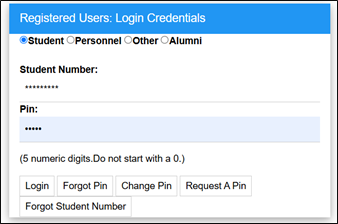
Step 2: Login and PIN Retrieval
- Registered users will appear.
- Select Student and type in your student number and Personal Identification Number (PIN).
- Click on Login if you know your PIN, otherwise click on Request a PIN. Your PIN will be sent to your registered email address.
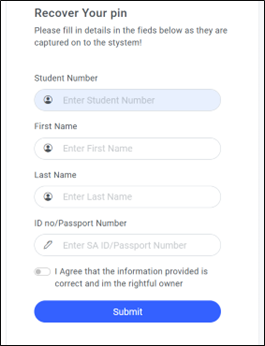
Forgot your PIN?
- You can retrieve your PIN by clicking on Reset PIN.
- Enter your Student Number, ID or Passport Number, and Full Name.
- If entered correctly, your PIN will be displayed on the page.
Step 3: Academic Registration
- Select Academic Registration from the left menu.
- Even if you are fully accepted, there may be issues preventing registration. Check under Registration Restrictions for any issues.
Rules and Regulations:
- Select Rules and Regulations and read through the document.
- Click on the I Accept button at the bottom (you may need to scroll down to see it).
- Acceptance of the Rules and Regulations is compulsory and serves as your electronic signature, stored in your student file.
Step 4: Submit Registration and Select Subjects
- Select Submit Registration from the left menu.
- Verify that the displayed qualification details are correct.
- All fields marked with an asterisk (*) must be completed.
- Select your Employment Status from the dropdown list.
- Click on Save and Continue, Save - Continue later, or Restart Process.
Possible Subject Selection:
- Select your subjects by ticking the box next to each subject.
- Note: You may not register for subjects where the prerequisite has not been met; these will be indicated with a red button.
On the next screen:
- Verify your selected subjects for the whole year.
- If you wish to change a subject, click the previous item in the process trail at the top.
- Once verified, click on Continue, Save and Continue, or Save - Continue later.
Print Registration Details or Print Cost Details:
- You can use the Print Registration Details or Print Cost Details buttons to print a list of subjects or costs.
- Important: You are NOT yet registered at this point— you MUST click on the Accept Registration button to complete the registration.
Accept Registration
- If you are satisfied with your subject selection and wish to proceed, click the Accept Registration button.
Step 5: Proof of Registration
-
Select Proof of Registration from the left to print your proof.
-
The Proof of Registration should include:
- 2026 Academic Year
- Your correct personal details
- Correct subjects and qualification
-
Save the proof of registration document.
-
Congratulations, you have registered successfully.
Step 6: Issuing of Student Cards
- When on campus, visit the student card printing station/office to get your student card.
- Present the saved proof of registration for printing your student card.
Study With Us
Contact Us
Email Address:
Contact Numbers:
Mthatha: 047 502 2100
Butterworth: 047 401 6000
East London: 043 702 9200
Potsdam: 043 708 5200
Chiselhurst: 043 709 4000
Follow us on Social Media
 |
 |
 |
 |
 |
 |
